What is your developer-dependent CMS actually costing you? Calculate your costs and get a full report


Extensibility
Webhooks
Webhooks allow external services to become aware of content changes that occur within your Agility CMS instance.
This works by providing a list or URL endpoints to Agility CMS.
Each time content changes in the CMS, Agility will notify each endpoint of the change and pass-on a message representing the exact change that occurred.
Use Cases
This can be incredibly useful for a developer. Some use cases for using Webhooks are:
- Clearing and managing a custom cache in an external system such as a website, mobile application, or database
- Providing a way to sync content/data for integrations with third-party systems (i.e. SalesForce, Mailchimp, etc)
- Building custom content workflows
- Kick-off a CI/D pipeline to redeploy your website when content has been updated - this is often used for Jamstack sites that are built using static site generators
Types of Events
You can configure what types of events your Webhook will be fired for.
- Content Publish Events - Notifies you when a Content Item or Page is published, unpublished or deleted. Unpublishing and deleting are both sent with the state
Deleted. - Content Workflow Events - Notifies you when a Content or Page has been requested for approval, declined, or approved.
- Content Save Events - Notifies you when a Content or Page has been created or updated. Webhooks with save events also receive
Deletedevents.
Secure Delivery
Webhook deliveries can be signed, so your endpoint can verify that a request genuinely came from your Agility instance and was not tampered with in transit. Agility implements the open Standard Webhooks specification, so you can verify signatures with any off-the-shelf library rather than hand-rolling the cryptography.
Secure delivery is opt-in per webhook. Tick Enable secure delivery when adding or editing a webhook, and Agility generates a signing secret for it and shows it to you. Webhooks with it switched off — including every webhook created before this feature shipped — are delivered exactly as they always have been, with no signature headers.
For the header format, how to derive the key from the secret, verification samples in several languages, and how to roll a secret, see Verifying Signed Webhooks.
Retries
Retries are opt-in per webhook. With retries switched off — the default, and the behaviour of every webhook created before retries existed — Agility attempts each delivery exactly once.
When you enable them, you choose a retry count (how many retries follow the first attempt, 1 to 8) and a retry speed:
- Fast - first retry after about 30 seconds
- Standard - first retry after about 5 minutes
- Slow - first retry after about 30 minutes
Each subsequent delay multiplies by four, carries a small random jitter so a burst of failures against one endpoint does not retry in lockstep, and is capped at 24 hours.
- Success is any 2xx response. Anything else is treated as a failure and retried.
- Redirects are failures. Agility does not follow them - point the webhook at its final URL.
- The delivery timeout is 30 seconds. Acknowledge with a 2xx immediately and do your real work in the background - a slow endpoint reads as a failed one.
Delivery is at-least-once, so design your endpoint to tolerate the same event arriving more than once. Every delivery carries a webhook-id header - signed or not - which is unique per event and stable across every retry of that event, so use it as your idempotency key.
Delivery History
Each webhook has a History action in Settings > Webhooks listing recent delivery attempts, newest first. For each attempt you can see:
- The status and HTTP response code - or a network error / timeout when no response came back.
- Whether the delivery was signed. This records what that delivery actually did, not what the webhook is configured to do now, so turning secure delivery on today does not relabel yesterday's deliveries.
- Whether it was a retry, and which attempt of how many.
- What happens next - either when the next retry is due, or that no further attempts are coming.
- When it was queued, and when it was last attempted.
Expanding an attempt shows its webhook-id, the target URL, the payload that was sent, the response body, and the last error. That webhook-id is the same value your endpoint received in the header, so it is how you match a row here to a line in your own logs.
History is retained for 90 days.
Adding a Webhook
In Agility CMS, navigate to Webhooks.

Click the New + button to open the details for your new Webhook.

In the Webhook details that open, enter the Url endpoint that you want to send events to. For testing, we recommend using a free service such as https://requestbin.com which allows you to set up an endpoint and monitor the messages that get sent there.

Next, select what type of Events this Webhook should be subscribed to. You can optionally subscribe to all events (Publishes, Workflow Approvals, and Content Saves) or select only the type(s) you need.
When you are ready, click the Send Test Payload button to test your Webhook endpoint. This will generate a sample request to your defined endpoint Url and log the result.
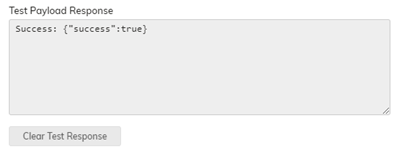

When ready, click Save to save your Webhook.
Payload Details
For every event, field and header in one place, plus the retry rules, delivery history fields and rolling a secret through the API, see Webhook Events and Payload Reference.
Page Events
On Save:
{
    "state": "Saved",
    "instanceGuid": "046a1a87",
    "languageCode": "en-us",
    "pageID": 2,
    "pageVersionID": 76,
    "changeDateUTC": "2019-11-06T15:08:54.7977419Z"
}
On Publish:
{
    "state": "Published",
    "instanceGuid": "046a1a87",
    "languageCode": "en-us",
    "pageID": 2,
    "pageVersionID": 76,
    "changeDateUTC": "2019-11-06T15:08:54.7977419Z"
}
On Unpublish or Delete:
{
    "state": "Deleted",
    "instanceGuid": "046a1a87",
    "languageCode": "en-us",
    "pageID": 2,
    "pageVersionID": 0,
    "changeDateUTC": "2019-11-06T15:12:41.1047362Z"
}
For page deletes, pageVersionID is always 0.
Content Events
On Save:
{
    "state": "Saved",
    "instanceGuid": "046a1a87",
    "languageCode": "en-us",
    "referenceName": "posts",
    "contentID": 39,
    "contentVersionID": 300,
    "changeDateUTC": "2019-11-06T15:10:24.9905899Z"
}
On Publish:
{
    "state": "Published",
    "instanceGuid": "046a1a87",
    "languageCode": "en-us",
    "referenceName": "posts",
    "contentID": 39,
    "contentVersionID": 300,
    "changeDateUTC": "2019-11-06T15:10:24.9905899Z"
}
On Unpublish or Delete:
{
    "state": "Deleted",
    "instanceGuid": "046a1a87",
    "languageCode": "en-us",
    "referenceName": "posts",
    "contentID": 39,
    "contentVersionID": 301,
    "changeDateUTC": "2019-11-06T15:14:02.5561907Z"
}
Event States
The state field tells you what happened:
Published- a content item or page was published. Sent to webhooks with Content Publish Events.Saved- a content item or page was created or updated. Sent to webhooks with Content Save Events.Deleted- a content item or page was unpublished, deleted, or reached its scheduled unpublish date. Sent to webhooks with Content Publish Events or Content Save Events.AwaitingApproval,Approved,Declined- workflow changes. Sent to webhooks with Content Workflow Events.
There is no Unpublished state: unpublishing is reported as Deleted. Fields that don't apply to an event are left out of the payload. A few Deleted events, such as a URL redirect change or a change to a whole list, carry no contentID or pageID at all; ignore them, or treat them as a signal to resync.
If you keep a copy of your content elsewhere, such as a search index or a cache, remove the item when you receive Deleted rather than re-fetching it from the Fetch API, which can briefly still return the old version. See Indexing Agility Content for Search.
On this page