What is your developer-dependent CMS actually costing you? Calculate your costs and get a full report


Content Architecture
Nest, Link or Share? Choosing Linked Content Field Types
Decide whether content should be inline, nested, linked or shared, see what each choice changes for editing, publishing, the API and deletion, then pick the right Linked Content field type.
Linked Content fields connect one piece of content to another. Before you pick a render type (dropdown, checkbox list, grid), make the bigger decision: should this content live inline on the item, be nested under it, linked from a shared list, or shared as a whole list? This page helps you choose, then describes each Linked Content field type.
For a walkthrough of every setting in the field dialog, see Getting Started with Linked Content.
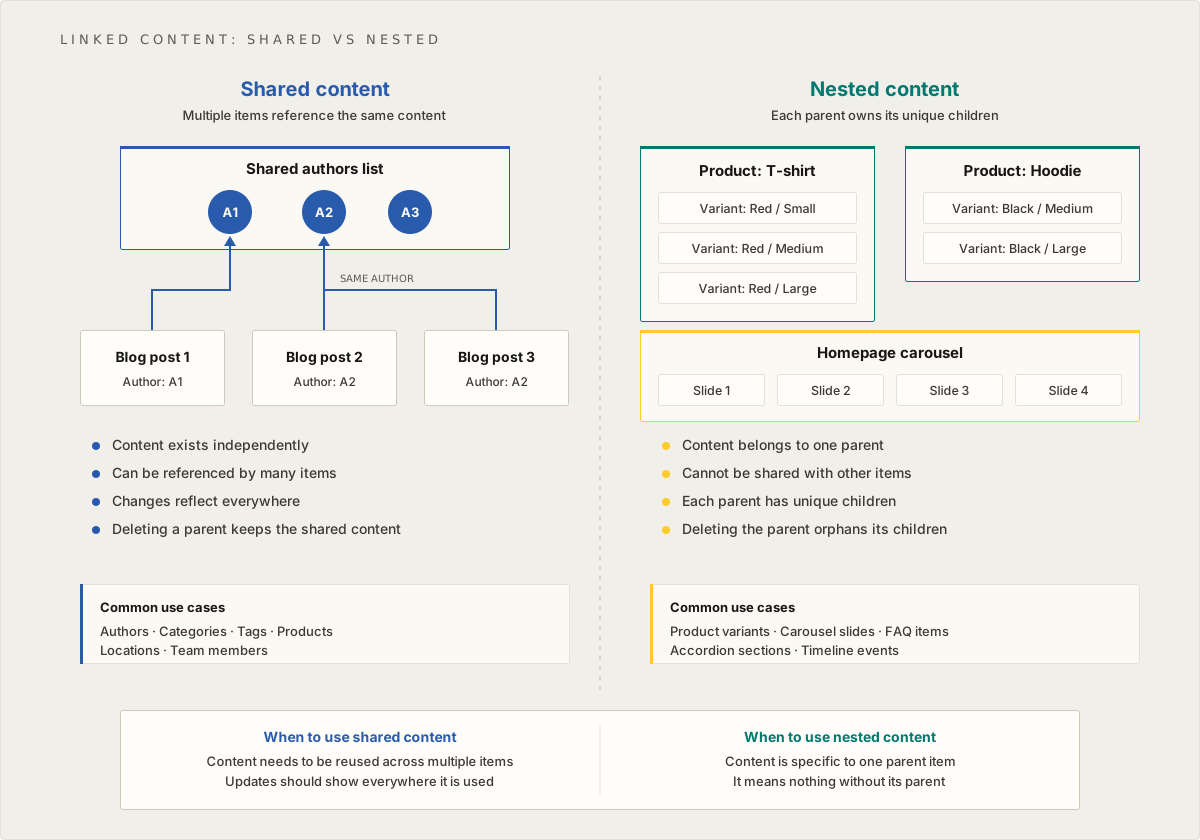
The four options
| Option | What it means | Field type | Typical examples |
|---|---|---|---|
| Inline | The values are ordinary fields on the item or Component itself | Text, Image, URL and other fields | A hero's heading, image and call to action |
| Nest | The item owns a child list (or a child item) that exists only for it | Nested Grid, Nested Link | Carousel slides, FAQ entries, product variants |
| Link | The item points at one or more chosen items in a shared list | Dropdown List, Checkbox List, Search List Box | A post's author, category or tags |
| Share | The item points at a whole shared list (or a shared single item) | Shared Grid, Shared Link | "Show all office locations", global settings |
Every Linked Content field stores the reference name of the list it points at. Link fields also store the selected content IDs in a companion field on the item.
How to choose
Ask these questions in order:
- Is it a handful of values that belong to this one item or block, and never repeat? Keep them inline. Don't create a list for a single heading and image.
- Does it repeat (several slides, several FAQ entries), but only make sense inside this one parent? Nest it. Each parent gets its own child list. If you catch yourself adding
Slide1,Slide2,Slide3fields, you want a nested list instead. - Will the same content be used by many items, or edited on its own? Put it in a shared list and link to the specific items you need. A change to the shared item shows everywhere it is linked.
- Should the block always show the whole list, rather than items an editor picks? Share the whole list, and filter or sort it in your front end.
When it's unclear, prefer the option with fewer moving parts: inline over nested, and a shared link over copying the same content into several places.
What each option changes
| Inline | Nest | Link | Share | |
|---|---|---|---|---|
| Reusable elsewhere | No | No, the child list belongs to its parent | Yes | Yes |
| Editors work in | The item's form | The parent's form (grid) or the child list's own screen (link) | The shared list, then pick items on the parent | The shared list |
| Publishing the parent in the Content Manager | Publishes the values | Also publishes the nested content, by default | Doesn't publish the shared items | Doesn't publish the shared list |
| Fetch API default response | The values | A referencename stub for a whole child list | The selected item, within the requested depth | A referencename stub |
Details behind the table:
- Publishing. Publishing a content item, page or Web Studio page also publishes its nested linked content by default. Editors can tick Publish this item only to skip it. Shared linked content is not affected. In the Management API, plain publish routes publish the item only, and the
publish-cascaderoutes include nested content at every level. See Previewing, Publishing, and Content States and Batches and the Batch API. - Fetching. In the Content Fetch API, a field that points at a whole list comes back as
{ "referencename": "..." }unless you passExpandAllContentLinks=true.ContentLinkDepth(default1, maximum5) sets how many levels are expanded. In GraphQL you select linked items like any other object. See Field Types and What the APIs Return. - Deleting. Deleting a parent item doesn't delete its nested items. They are orphaned, and if you restore the parent, its nested content is available again. Deleting a parent never affects shared content.
Shared content field types
Use these when the content already exists in a content list, or should, because more than one item uses it.
Dropdown List
Select a single item from a list.
- Stores the list's reference name in the field.
- Saves the selected item's content ID to a value field, and usually its display text to a text field (both hidden).
- Right for one-to-one choices: an author, a primary category, a shared call to action.
Checkbox List
Select several items using checkboxes.
- Stores the selected content IDs as a comma-separated list in the value field.
- Can show the checkboxes in several columns.
- Only for short lists that will stay short. If the list may grow, use a Search List Box instead (a Checkbox List can be converted later).
Common uses: a few features or amenities from a small, stable list.
Search List Box
Search for and select several items from a list.
- Stores the selected content IDs as a comma-separated list in the value field.
- Built for long lists: hundreds or thousands of items.
- Show one text column (usually the title) so each item is easy to recognize.
Common uses: tags, products, people, locations.
Shared Grid
Show a whole shared list inside the item, as a grid.
- Links to content that exists on its own; many items can point at the same list.
- Supports sorting and visible columns.
- Items are created and edited in the shared list.
Common uses: team members, office locations, shared resources.
Shared Link
A link to an existing shared list or item, without a grid.
- Establishes the relationship; editors follow the link to edit the shared content on its own screen.
Common uses: global settings, a shared header or footer configuration.
Nested content field types
Use these when the content belongs to one parent and isn't reused.
Nested Grid
A grid inside the parent's form for creating its child items.
- Each parent item gets its own child list (or, if you choose Item, a single child item).
- Child items are created and edited from the parent.
Common uses: carousel slides, FAQ items, product variants, testimonials, timeline events, accordion sections.
Nested Link
The same ownership as a Nested Grid, but the field shows a link instead of a grid. Editors follow it to work on the child content on its own screen. Use it when the child list is long or has many columns, so it doesn't crowd the parent's form.
Companion fields
Dropdown List, Checkbox List and Search List Box fields save the selection into hidden fields that you name in the field's settings:
- Save Value to Field stores the selected content ID, or a comma-separated list of IDs (for example
110or32,45,65). - Save Text to Field stores the display text of the selection, which is useful as a column in content list grids.
Don't delete or disable these fields: the selection is stored in them. They are also the cheapest way to filter by a relationship, for example fields.category_ValueField[eq]"110". See GraphQL & Rest API Filtering.
Worked examples
- Blog post and author. Authors appear on many posts and on their own page: a shared Authors list, linked with a Dropdown List.
- Blog post and tags. Tags are reused and the list will grow: a shared Tags list, linked with a Search List Box. See Designing a Taxonomy That Scales.
- Homepage carousel. The slides only exist for this carousel: a Nested Grid on the carousel Component.
- Product and its variants. Variants belong to one product: a Nested Grid on the product.
- Hero banner. One heading, one image, one link: inline fields on the Hero Component.
- Footer offices block. Always shows every office: a Shared Grid pointing at the Offices list.
Related
On this page