What is your developer-dependent CMS actually costing you? Calculate your costs and get a full report


Editors
Content Management Basics
This guide covers the fundamentals of working with content items in Agility CMS. Content items are standalone pieces of content that can be reused across multiple pages and components.
This guide covers the fundamentals of working with content items in Agility CMS. Content items are standalone pieces of content that can be reused across multiple pages and components.
What Are Content Items?
Content Items are standalone pieces of content that can be reused across multiple pages or components. This is one of Agility CMS's most powerful features.
Why Use Content Items?
- Reusability: Update content in one place, see changes everywhere it's used
- Consistency: Ensure brand messaging and data stay consistent
- Efficiency: Don't duplicate content across pages
Content Models vs Content Items
- Content Model: The blueprint that defines what fields a content item has (e.g., "Post" model defines title, body, author fields)
- Content Item: An actual instance created from a content model (e.g., "My First Blog Post" is a content item of type "Post")
Think of it like this:
- Content Model = A form template
- Content Item = A filled-out form
Content Lists
Content items are organized into Content Lists. Each content list contains items of a specific content model type.
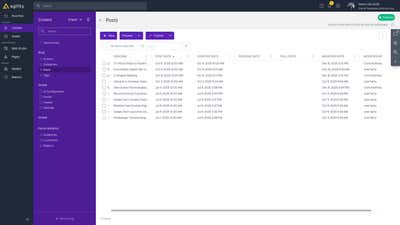
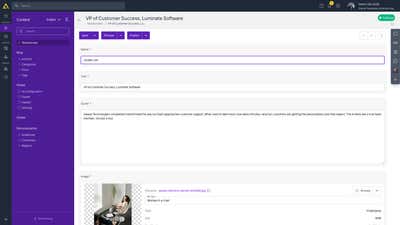
Content lists show all items of a specific type. Click on any item to edit it.
Creating a Content Item
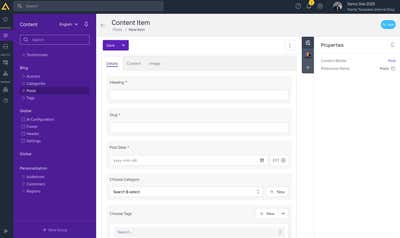
- Navigate to Content in the main navigation
- Select the content list you want to work with (e.g., "Posts", "Authors")
- Click "Add Content" or the "+" button
- Fill in all required fields
- For linked content fields (like Author or Category), click to select from existing items or create new ones
- Click "Save"
Field Types
Content items can have various field types:
- Text: Single-line text input
- Rich Text: Formatted text with formatting toolbar
- Number: Numeric values
- Date/Time: Date and time pickers
- Image: Image upload and selection
- Linked Content: Link to other content items
- Multiple Linked Content: Link to multiple content items
- Boolean: Checkbox (true/false)
Editing Content Items
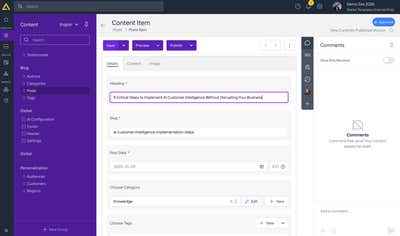
- Navigate to Content
- Select the content list
- Click on the content item you want to edit
- Make your changes
- Click "Save"
Rich Text Editing
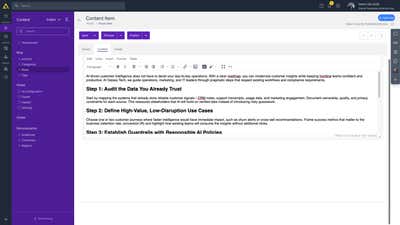
When editing rich text fields:
- Use the formatting toolbar for text styling
- Insert links, images, and other media
- Format text with headings, lists, and emphasis
Linking Content Items
Content items can link to other content items. This creates relationships between content.
Types of Links
- One-to-One: One content item links to one other item
- One-to-Many: One content item links to multiple items
- Many-to-Many: Multiple items can link to multiple items
How to Link Content
- When editing a content item, find a linked content field
- Click the field to open the content picker
- Select the content item(s) you want to link
- Save the content item
Example: A blog post might link to:
- One Author (one-to-one)
- One Category (one-to-one)
- Multiple Tags (one-to-many)
Content Item Status
Content items have publishing status:
- Draft: Not yet published
- Published: Live and available
- Archived: No longer active
Best Practices
- Use descriptive names: Make content item titles clear and descriptive
- Fill required fields: Ensure all required fields are completed
- Link related content: Use linked content fields to create relationships
- Keep content reusable: Design content items to be reusable across pages
- Use consistent formatting: Follow formatting guidelines for consistency
Common Tasks
Finding Content Items
- Use the search bar in content lists
- Filter by various criteria
- Sort by different fields
Bulk Operations
- Select multiple items using checkboxes
- Perform bulk actions (publish, delete, etc.)
Organizing Content
- Use content lists to organize by type
- Use linked content to create relationships
- Use tags or categories for additional organization
Next: Pages Basics - Creating and managing pages
On this page