What is your developer-dependent CMS actually costing you? Calculate your costs and get a full report


Editors
Page Management Basics
This guide covers how to create, edit, and manage pages in Agility CMS. Pages represent individual web pages on your site.
This guide covers how to create, edit, and manage pages in Agility CMS. Pages represent individual web pages on your site.
What Is a Page?
A Page represents an individual web page on your site. Pages are organized in a Sitemap, which defines your site's navigation structure.
Page Structure
- Page Model: Defines the structure (content zones, layout)
- Page Instance: An actual page created from a page model
- Content Zones: Areas on the page where components can be placed
- Components: Reusable building blocks placed in content zones
Sitemap
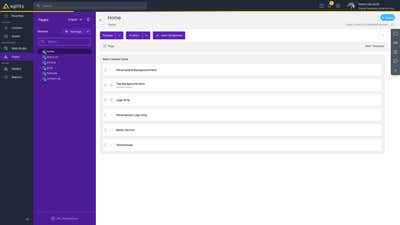
The sitemap shows your site's page hierarchy:
- Pages are organized in a tree structure
- Parent pages contain child pages
- Each page has a URL path
How to view the sitemap:
- Navigate to Pages → Sitemap
- Browse the page hierarchy
- Click on any page to edit it
Creating a New Page
-
Navigate to Pages → Sitemap
-
Select where you want to add the new page in the sitemap tree
-
Click "Add Page" or the "+" button
-
Fill in the page properties:
- Title: Display name for the page
- URL Slug: The URL path (e.g.,
/about-us) - Page Model: Select a page model (if available)
Note: "Page Templates" is the old terminology. The current term is "Page Models."
-
Click "Save"
Page Models
Page Models define the structure of pages:
- Content Zones: Named areas where components can be placed
- Layout: How content zones are arranged
- Metadata: Default fields for pages
Different page models can have different content zone configurations. For example:
- A "Home Page" model might have zones: "Hero", "Features", "Testimonials"
- A "Blog Post" model might have zones: "Content", "Sidebar"
Page Editor
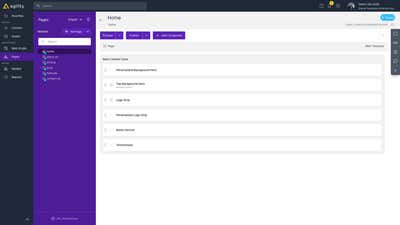
When editing a page, you'll see:
Content Zones
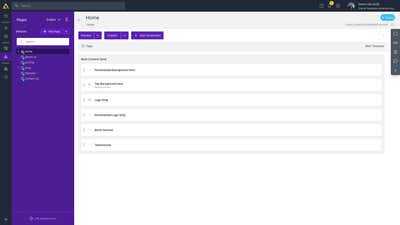
Content Zones are areas on the page where components can be added:
- Each zone has a name (e.g., "Main Content", "Sidebar")
- Zones are defined by the page model
- You can add multiple components to each zone
Adding Components to Pages
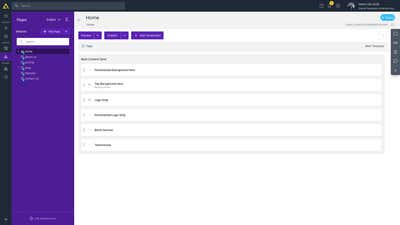
- Open the page you want to edit
- In the page editor, you'll see Content Zones (areas where components can be added)
- Click "Add Component" in the desired content zone
- Select the component type from the list
- Configure the component's content fields
- Click "Save"
Editing Components on Pages
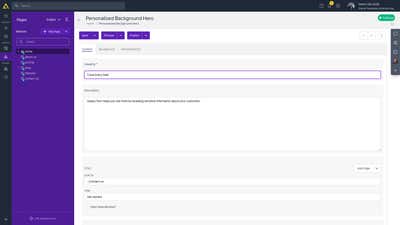
- Navigate to Pages → Sitemap
- Click on the page you want to edit
- In the page editor, click on any component to open its content editor
- Make your changes to the component's fields
- Click "Save" to save the component
- Click "Publish" (or "Submit for Approval" if workflow is enabled) to make changes live
Page Properties
Each page has properties:
- Title: Display name
- URL Slug: The URL path
- Page Model: Which page model this page uses
- Metadata: SEO fields (title, description, etc.)
- Status: Draft, Published, etc.
Page Status
Pages have publishing status:
- Draft: Not yet published
- Published: Live and available
- Archived: No longer active
Best Practices
- Plan your sitemap: Organize pages logically in the hierarchy
- Use appropriate page models: Choose page models that match your content needs
- Organize components: Place components logically in content zones
- Test before publishing: Use preview to check how pages look
- Keep URLs clean: Use descriptive, SEO-friendly URL slugs
Next: Components - Working with components
On this page