What is your developer-dependent CMS actually costing you? Calculate your costs and get a full report


Editors
Publishing Workflow
This guide explains the publishing workflow in Agility CMS, including how to publish content, manage drafts, and understand approval processes.
This guide explains the publishing workflow in Agility CMS, including how to publish content, manage drafts, and understand approval processes.
Content Status
Content items and pages have publishing status:
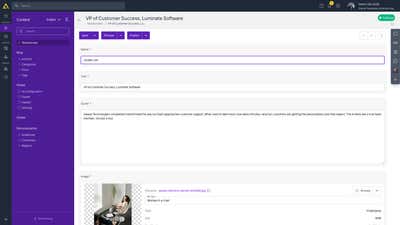
- Draft: Content that hasn't been published yet
- Published: Content that is live and available
- Archived: Content that is no longer active
Basic Publishing Workflow
Publishing Content Items
- Create or edit a content item
- Fill in all required fields
- Click "Save" to save as draft
- Click "Publish" to make it live
Publishing Pages
- Create or edit a page
- Add and configure components
- Click "Save" to save as draft
- Click "Publish" to make the page live
What Gets Published With an Item
Since September 23, 2026, publishing a content item, a page, or a page in Web Studio also publishes its nested linked content by default. Nested linked content is child content that belongs only to the item you are publishing. Shared linked content, which comes from a shared content list and can be used in many places, is not affected.
This means one publish can take more content live than the item you are looking at, including saved changes that nobody has reviewed yet. To avoid that:
- Preview the nested content as well as the item before you publish
- To publish only the item itself, tick Publish this item only in the Publish prompt. The option only appears when there is nested content to include.
See Previewing, Publishing, and Content States for details.
Preview Before Publishing
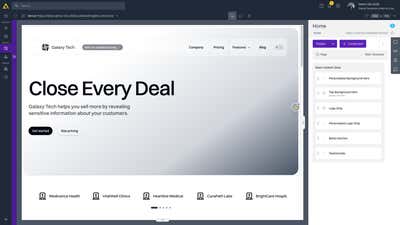
Always preview content before publishing:
- Click "Preview" or navigate to Web Studio
- Review how content will appear
- Check formatting, images, and layout
- Make adjustments if needed
- Publish when ready
Approval Workflows
Agility CMS supports approval workflows through the Security/permissions system. Workflows are configured by assigning roles and permissions.
How Workflows Work
- Roles: Users are assigned roles (Editor, Publisher, Admin, etc.)
- Permissions: Roles have different permissions (Read, Contribute, Edit, Approve, Publish, etc.)
- Workflow Steps: Content moves through approval steps based on permissions
Common Workflow Patterns
Simple Workflow:
- Editor creates content → Publisher reviews and publishes
Multi-Step Workflow:
- Editor creates content → Reviewer approves → Publisher publishes
Role-Based Workflow:
- Different roles can edit, approve, or publish based on their permissions
Submitting for Approval
If approval is required:
- Create or edit content
- Click "Submit for Approval" instead of "Publish"
- Content moves to the next approval step
- Users with approval permissions can approve or reject
Publishing Status Indicators
Status indicators show the current state:
- Draft badge: Content is not yet published
- Published badge: Content is live
- Pending approval: Content is awaiting approval
Best Practices
- Always preview: Use preview to check content before publishing
- Save drafts frequently: Save work as drafts before publishing
- Follow workflow: Respect approval processes if configured
- Check nested content: Publishing an item also publishes its nested linked content by default, so review that content too, or tick Publish this item only to leave it out
- Test after publishing: Verify content appears correctly after publishing
Common Publishing Tasks
Updating Published Content
- Edit the published content item or page
- Make your changes
- Save (creates a new draft version)
- Preview to verify changes
- Publish to update the live version
Unpublishing Content
- Open the published content
- Change status to "Draft" or "Archived"
- Save to remove from live site
Bulk Publishing
- Select multiple items in a content list
- Use the Publish action at the top of the list. With items selected, it applies only to those items.
- In the Publish prompt, choose whether to include nested linked content (see What Gets Published With an Item)
A bulk publish runs in the background and shows its progress. See Batch Content Publishing.
Next: Troubleshooting - Common issues and solutions
On this page